> ## Documentation Index
> Fetch the complete documentation index at: https://docs.allyy.io/llms.txt
> Use this file to discover all available pages before exploring further.

# Allyy Salesforce Connector

> Allyy Salesforce Connector application installation guide

### Purpose of the document

This document contains detailed information about setting up a connection for the Allyy Salesforce Connector application.

A new Connected App should be created to establish a secure connection between the application and Salesforce to retrieve the Consumer Key and Secret.
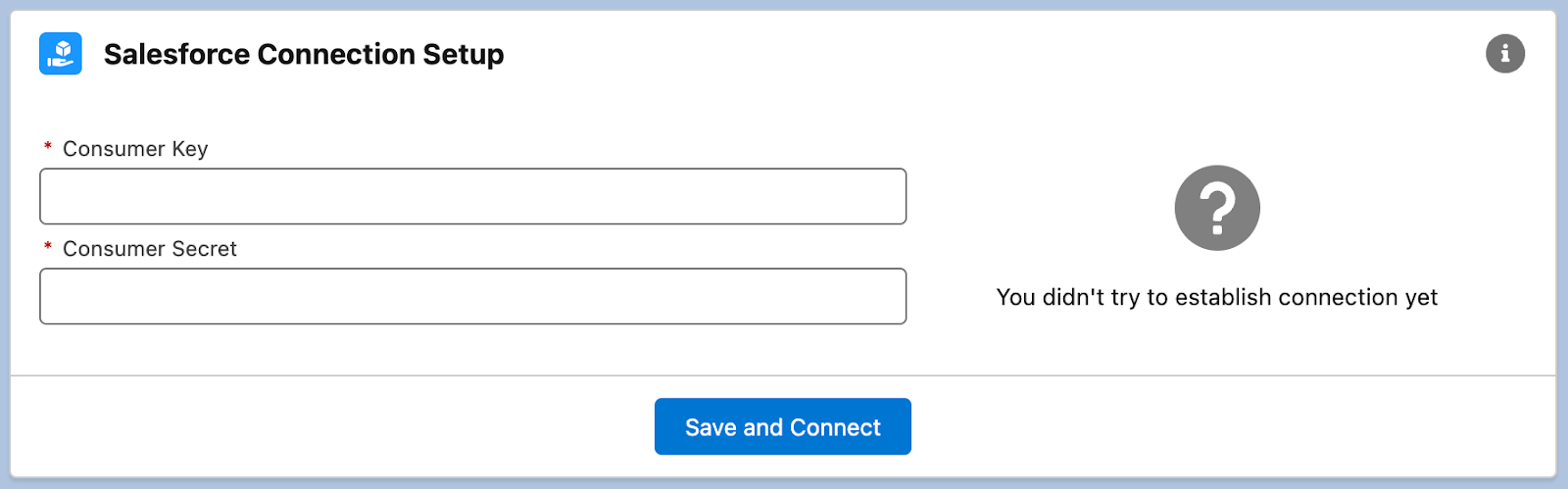
<img src="https://mintcdn.com/allyyio/qfAE3_iWBtmr9iD7/images/integrations/salesforce/screen_empty_consumer_key_form.png?fit=max&auto=format&n=qfAE3_iWBtmr9iD7&q=85&s=9dcc4c597e5f7b9eff8032914aae8b96" alt="An empty form to be filled with Consumer Key and Secret" width="1600" height="499" data-path="images/integrations/salesforce/screen_empty_consumer_key_form.png" />

### Create a new Connected App

1. Navigate the setup

<img src="https://mintcdn.com/allyyio/-6byzLIs4C96d-3q/images/integrations/salesforce/screen_navigate_the_setup.png?fit=max&auto=format&n=-6byzLIs4C96d-3q&q=85&s=11850fd0d531c12aa5fc570b64c7a36e" alt="Open Setup menu" width="1600" height="316" data-path="images/integrations/salesforce/screen_navigate_the_setup.png" />

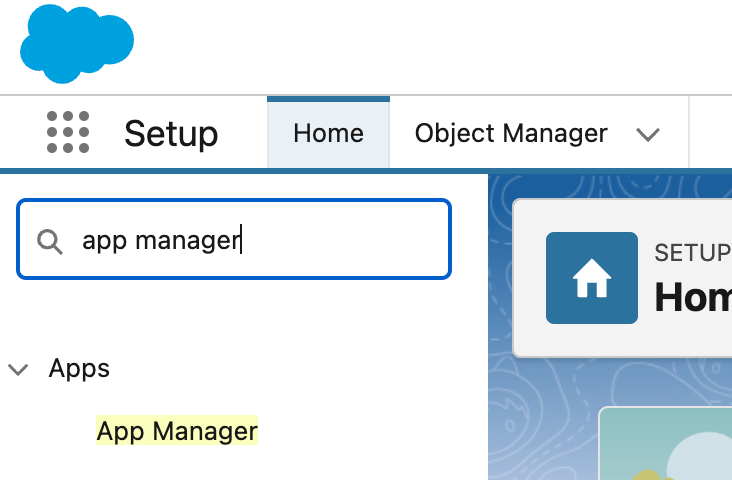
2. Find App Manager

<img src="https://mintcdn.com/allyyio/-6byzLIs4C96d-3q/images/integrations/salesforce/screen_find_app_manager.png?fit=max&auto=format&n=-6byzLIs4C96d-3q&q=85&s=80c40cf5dded3b60a275c4075ecfa6c4" alt="Type 'App Manager' in the search bar" width="732" height="480" data-path="images/integrations/salesforce/screen_find_app_manager.png" />

3. Create a new Connected App by clicking in the "New Connected App" button

<img src="https://mintcdn.com/allyyio/qfAE3_iWBtmr9iD7/images/integrations/salesforce/screen_create_a_new_connected_app_1.png?fit=max&auto=format&n=qfAE3_iWBtmr9iD7&q=85&s=dc17b8014724a3a21a831f9cbb5951c1" alt="Click 'New Connected App' button" width="1600" height="250" data-path="images/integrations/salesforce/screen_create_a_new_connected_app_1.png" />

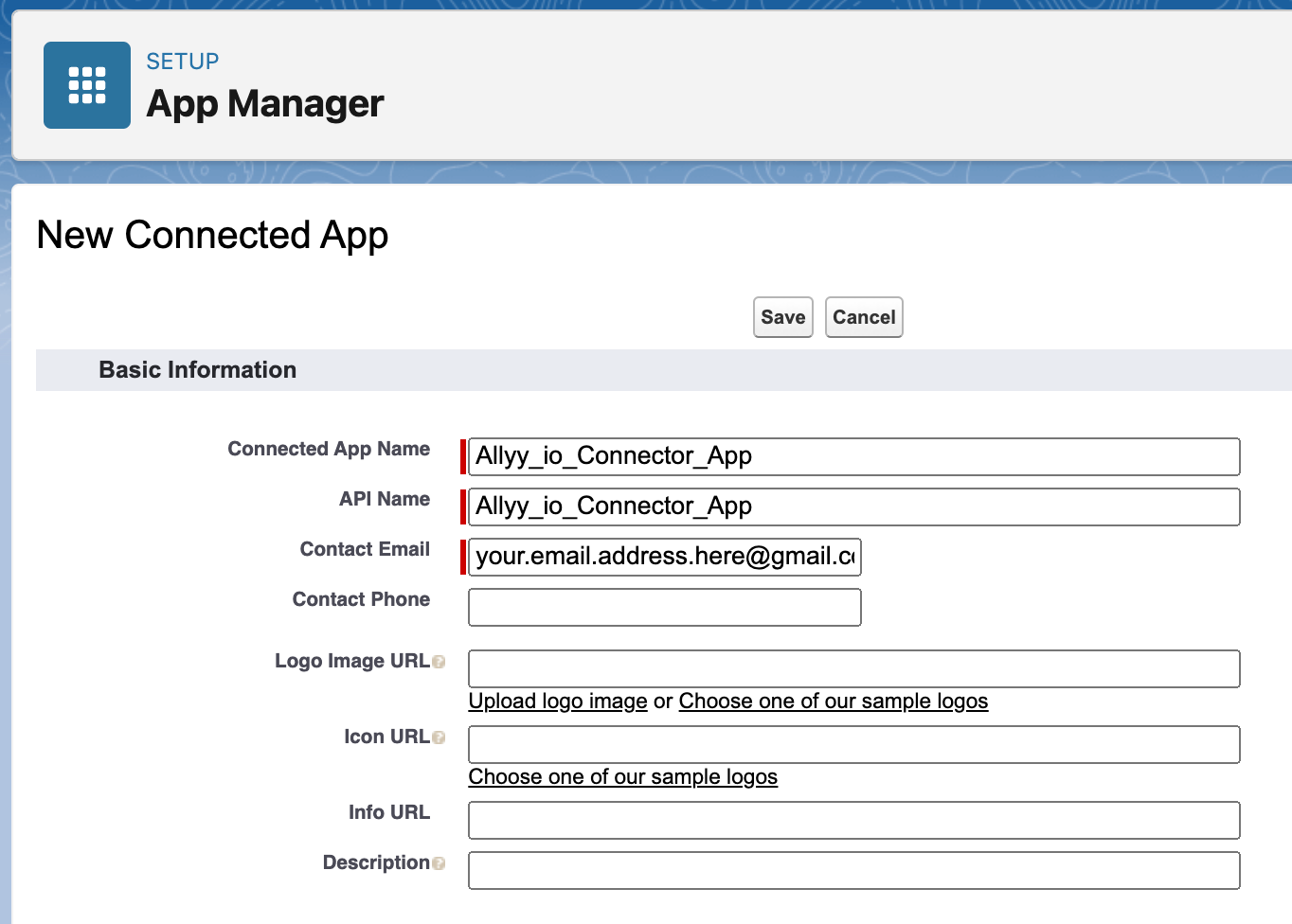
4. Fill out the required input fields:

* *Connected App Name*: Allyy.io Connector App
* *API Name*: Allyy.io\_Connector\_App
* *Contact Email*: your email address
<img src="https://mintcdn.com/allyyio/qfAE3_iWBtmr9iD7/images/integrations/salesforce/screen_create_a_new_connected_app_2.png?fit=max&auto=format&n=qfAE3_iWBtmr9iD7&q=85&s=b2dfe481cb445e70156970495d12e64f" alt="Click 'New Connected App' button" width="1364" height="976" data-path="images/integrations/salesforce/screen_create_a_new_connected_app_2.png" />

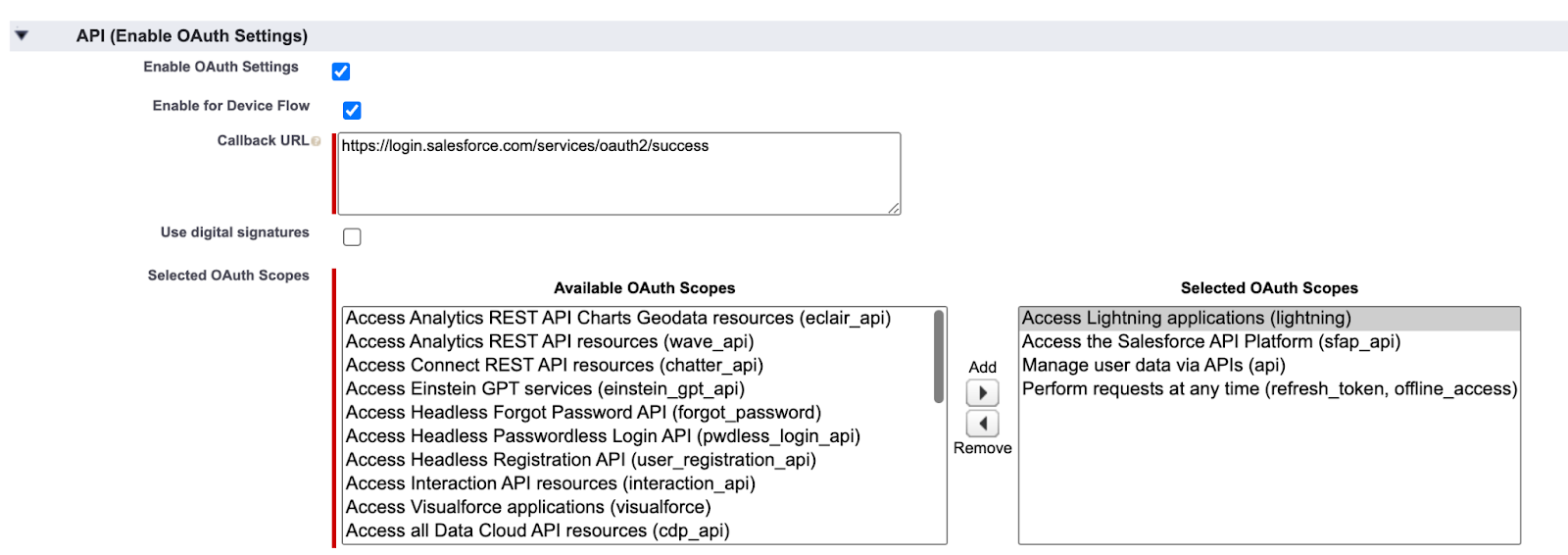
5. Enable and configure OAth 2.0 settings:

* *Callback URL*: [https://login.salesforce.com/services/oauth2/success](https://login.salesforce.com/services/oauth2/success)
* *Selected OAuth Scopes*:
  * Access Lightning applications (lightning)
  * Access the Salesforce API Platform (sfap\_api)
  * Manage user data via APIs (api)
  * Perform requests at any time (refresh\_token, offline\_access)
<img src="https://mintcdn.com/allyyio/qfAE3_iWBtmr9iD7/images/integrations/salesforce/screen_create_a_new_connected_app_3.png?fit=max&auto=format&n=qfAE3_iWBtmr9iD7&q=85&s=f1214e8c1f345d9a54e2c5c09978efeb" alt="Choose correct OAuth Scopes" width="1600" height="566" data-path="images/integrations/salesforce/screen_create_a_new_connected_app_3.png" />

6. Click the Save button
7. Click the Continue button and wait for some time (up to 10 min)

<img src="https://mintcdn.com/allyyio/qfAE3_iWBtmr9iD7/images/integrations/salesforce/screen_create_a_new_connected_app_4.png?fit=max&auto=format&n=qfAE3_iWBtmr9iD7&q=85&s=a0114da61521bed919f4f0184f4f5ca3" alt="Continue and wait up to 10 min" width="1600" height="252" data-path="images/integrations/salesforce/screen_create_a_new_connected_app_4.png" />

### Retrieve the Consumer Key and Secret

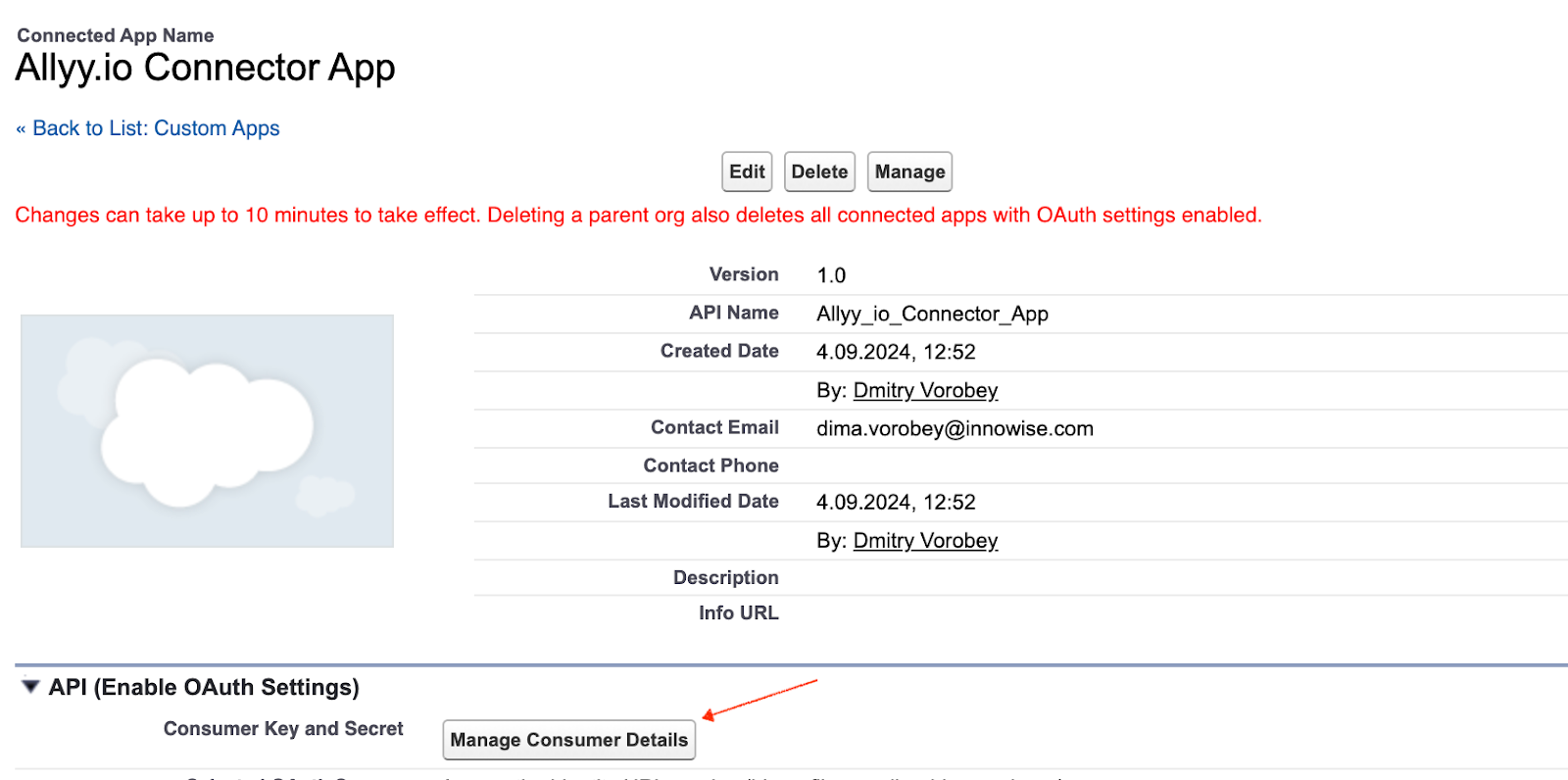
1. Click on the Manage Consumer Details button
<img src="https://mintcdn.com/allyyio/-6byzLIs4C96d-3q/images/integrations/salesforce/screen_retrieve_the_consumer_key_and_secret_1.png?fit=max&auto=format&n=-6byzLIs4C96d-3q&q=85&s=a458d6d343ea5bf45330db34fa29730e" alt="Click on the Manage Consumer Details button" width="1600" height="796" data-path="images/integrations/salesforce/screen_retrieve_the_consumer_key_and_secret_1.png" />

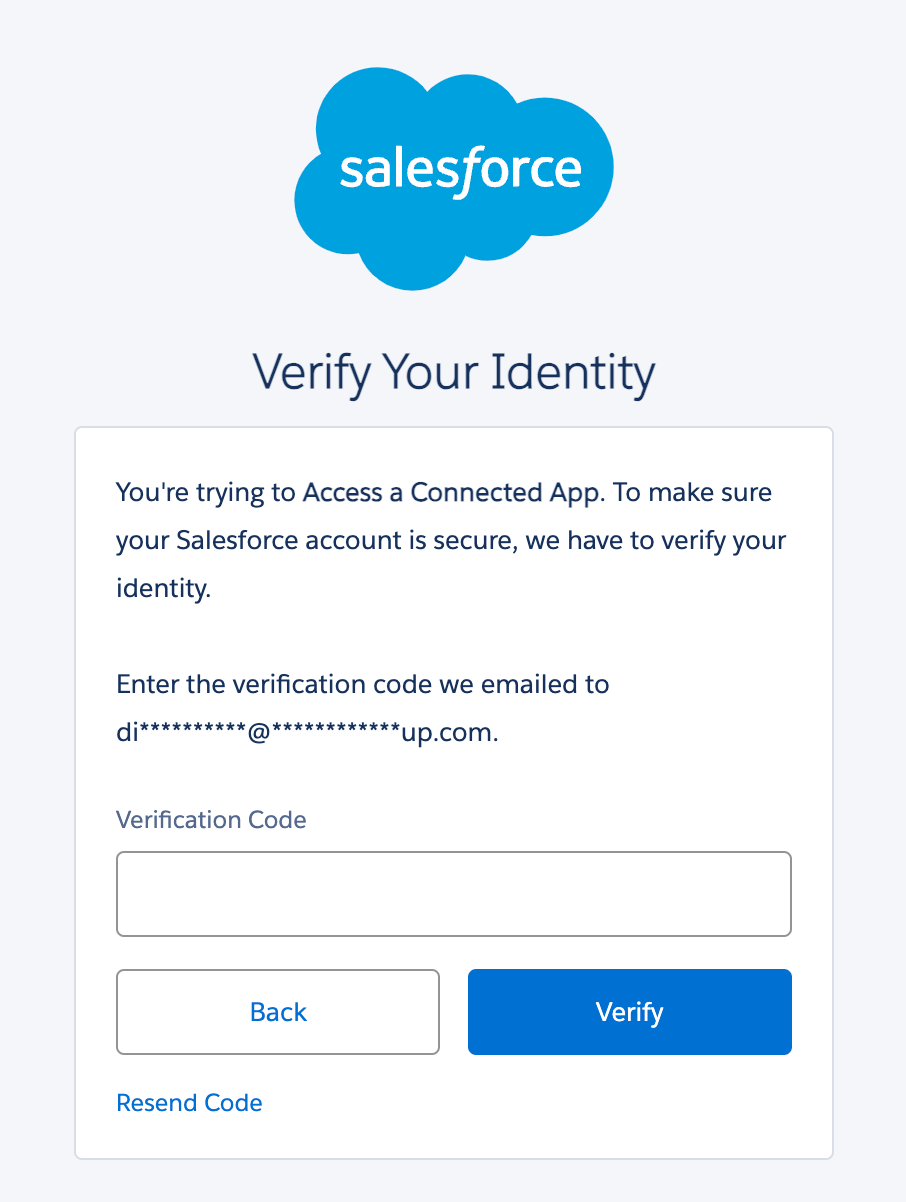
2. Paste the verification code

<img src="https://mintcdn.com/allyyio/-6byzLIs4C96d-3q/images/integrations/salesforce/screen_retrieve_the_consumer_key_and_secret_2.png?fit=max&auto=format&n=-6byzLIs4C96d-3q&q=85&s=988454ecabf14bd9b277b51155609118" alt="Paste the verification code" width="906" height="1202" data-path="images/integrations/salesforce/screen_retrieve_the_consumer_key_and_secret_2.png" />

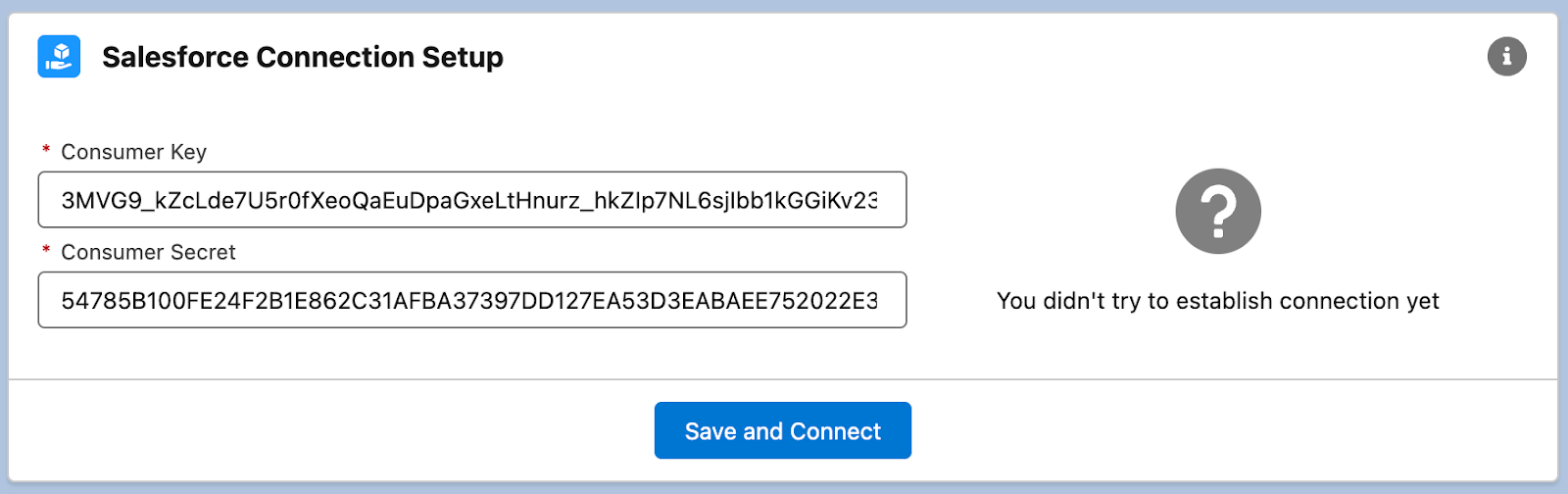
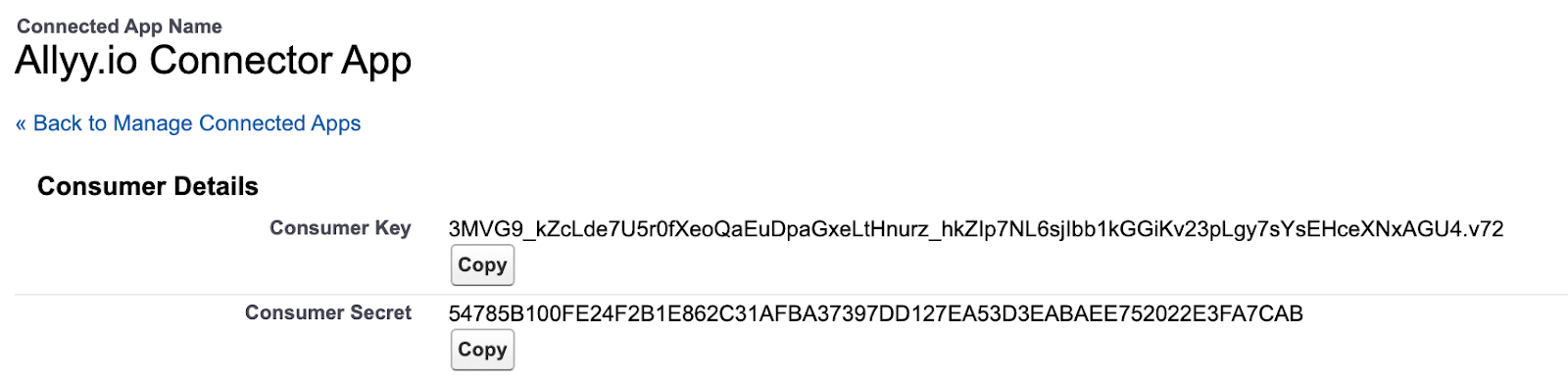
3. Copy key and secret from the opened page and paste them into the application
<img src="https://mintcdn.com/allyyio/-6byzLIs4C96d-3q/images/integrations/salesforce/screen_retrieve_the_consumer_key_and_secret_3.png?fit=max&auto=format&n=-6byzLIs4C96d-3q&q=85&s=c712c5ea5bd7036deb0a47efc124ec96" alt="Copy Consumer Key and Secret" width="1600" height="389" data-path="images/integrations/salesforce/screen_retrieve_the_consumer_key_and_secret_3.png" />

<img src="https://mintcdn.com/allyyio/-6byzLIs4C96d-3q/images/integrations/salesforce/screen_retrieve_the_consumer_key_and_secret_4.png?fit=max&auto=format&n=-6byzLIs4C96d-3q&q=85&s=411d7875c7ab02823405b247428c6d3a" alt="Paste Consumer Key and Secret into the application" width="1600" height="504" data-path="images/integrations/salesforce/screen_retrieve_the_consumer_key_and_secret_4.png" />

4. Click on the "Save and Connect" button

If you see the error like in the picture below, it means, that Salesforce still needs some time to initialize the newly created Connected App. Just go back, and click the Save and Connect button again after some time.

<img src="https://mintcdn.com/allyyio/-6byzLIs4C96d-3q/images/integrations/salesforce/screen_retrieve_the_consumer_key_and_secret_5.png?fit=max&auto=format&n=-6byzLIs4C96d-3q&q=85&s=fc08959b8b44db612ee7359754a59bc1" alt="In case of the error you should wait a bit more" width="1600" height="116" data-path="images/integrations/salesforce/screen_retrieve_the_consumer_key_and_secret_5.png" />

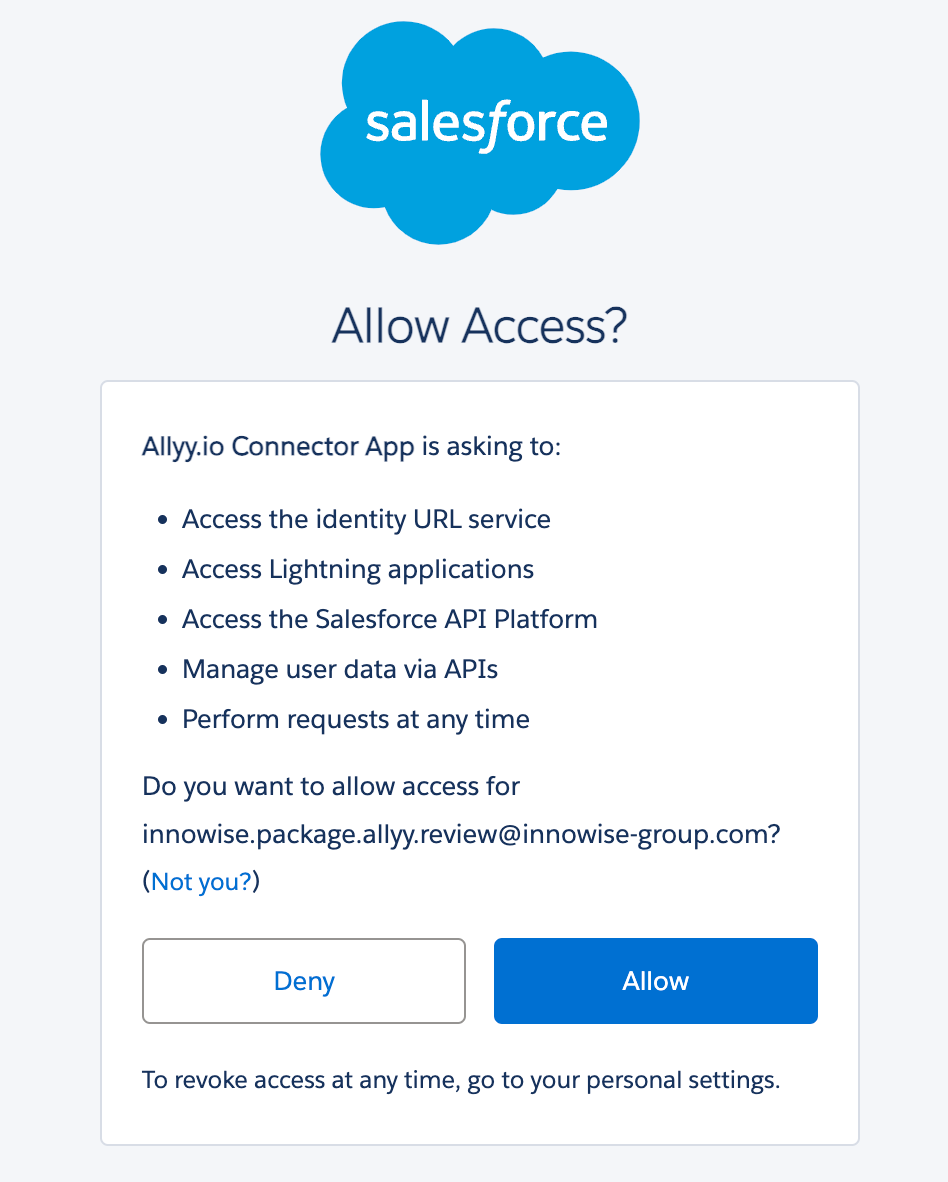
5. Click on the "Allow" button
   The next page should appear if Salesforce had enough time for the Connected App activation.
<img src="https://mintcdn.com/allyyio/-6byzLIs4C96d-3q/images/integrations/salesforce/screen_retrieve_the_consumer_key_and_secret_6.png?fit=max&auto=format&n=-6byzLIs4C96d-3q&q=85&s=ef4f3b0d52625dab4d522ff83c3207d9" alt="Click on 'Allow' button" width="948" height="1182" data-path="images/integrations/salesforce/screen_retrieve_the_consumer_key_and_secret_6.png" />

Below is the success screen

<img src="https://mintcdn.com/allyyio/-6byzLIs4C96d-3q/images/integrations/salesforce/screen_retrieve_the_consumer_key_and_secret_7.png?fit=max&auto=format&n=-6byzLIs4C96d-3q&q=85&s=e21e22ac4b9d04029f565c15ee711534" alt="Success screen after authorization request" width="1600" height="120" data-path="images/integrations/salesforce/screen_retrieve_the_consumer_key_and_secret_7.png" />

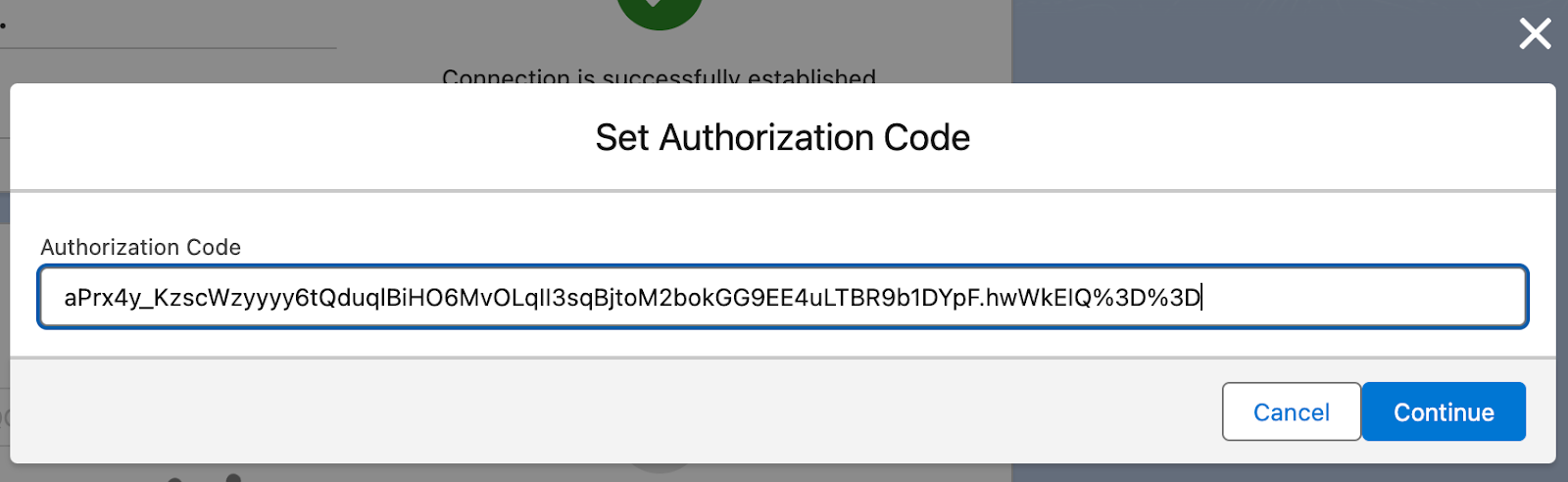
6. Copy code parameter from the URL

<img src="https://mintcdn.com/allyyio/-6byzLIs4C96d-3q/images/integrations/salesforce/screen_retrieve_the_consumer_key_and_secret_8.png?fit=max&auto=format&n=-6byzLIs4C96d-3q&q=85&s=00911eb7f00f99a4a21ef5238c767e0c" alt="Copy authorization code" width="1600" height="79" data-path="images/integrations/salesforce/screen_retrieve_the_consumer_key_and_secret_8.png" />

Go to the Salesforce app (it should be in the neighbor tab). A popup with input should appear. Past the copied code to the popup and click continue.
<img src="https://mintcdn.com/allyyio/-6byzLIs4C96d-3q/images/integrations/salesforce/screen_retrieve_the_consumer_key_and_secret_9.png?fit=max&auto=format&n=-6byzLIs4C96d-3q&q=85&s=ba4d012647a69ffef8506daed5b1b657" alt="Insert authorization code" width="1600" height="492" data-path="images/integrations/salesforce/screen_retrieve_the_consumer_key_and_secret_9.png" />

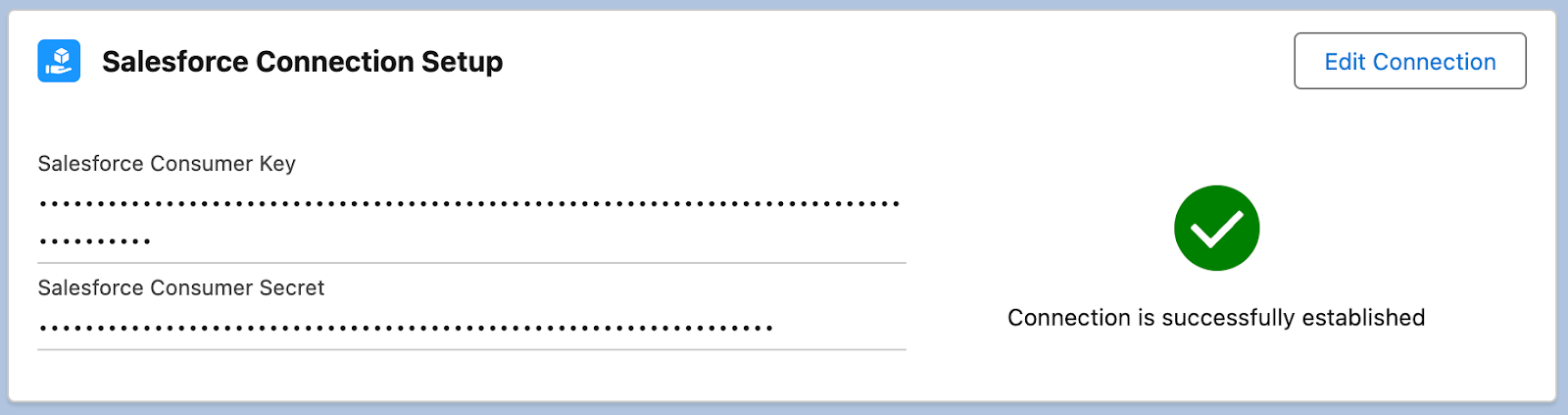
### Success

Connection between Allyy Salesforce Connection application and Salesforce is succesfully established
<img src="https://mintcdn.com/allyyio/-6byzLIs4C96d-3q/images/integrations/salesforce/screen_ready_consumer_key_form.png?fit=max&auto=format&n=-6byzLIs4C96d-3q&q=85&s=c3136074d777e95b35f94744709e1673" alt="Connection established" width="1600" height="423" data-path="images/integrations/salesforce/screen_ready_consumer_key_form.png" />